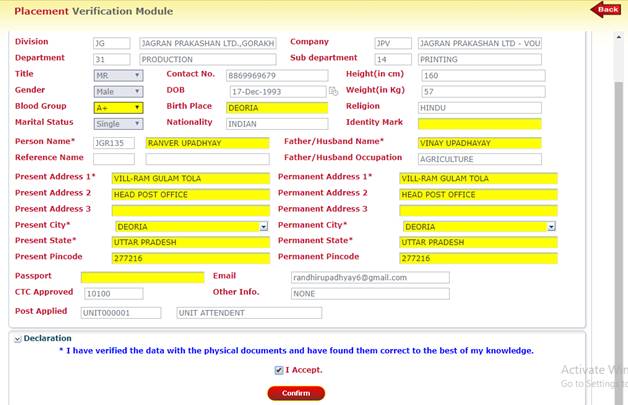
Placement Verification


This module is used by the Time office for verification of data entered by the candidate. Once the Time Office verifies the data, Employee Master is generated.

For Placement Verification follow the following steps-


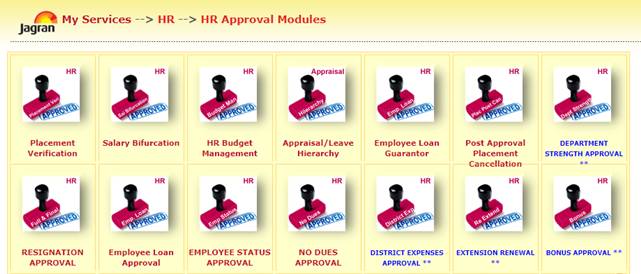
Step 1: Go to HR -> HR Approvals -> Placement Verification
https://jconnect.dainikjagran.com/jagranportal/jconnecthelp/help/Placement%20Verficiation_files/image002.jpg

Step 2: Click on Placement Verification node. Following screen will be displayed.
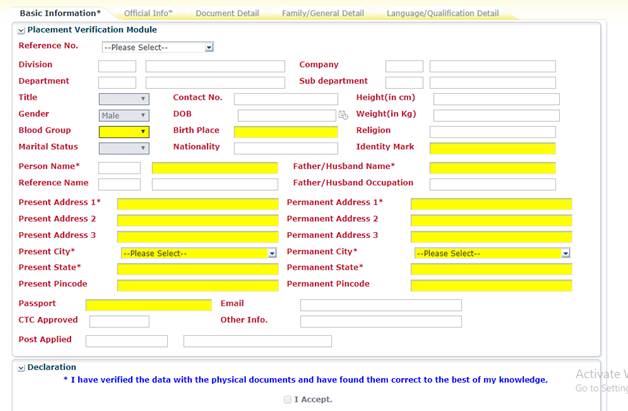
https://jconnect.dainikjagran.com/jagranportal/jconnecthelp/help/Placement%20Verficiation_files/image004.jpg


Step 3: Select Reference Number and then click on search button.
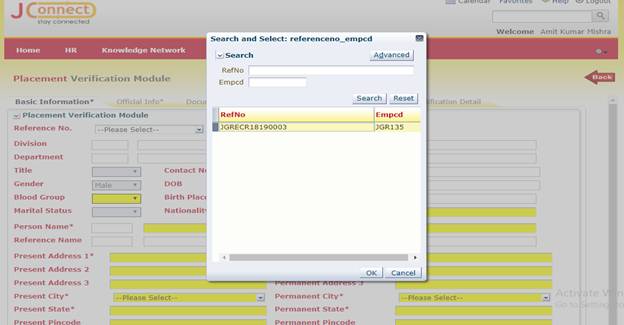
 

https://jconnect.dainikjagran.com/jagranportal/jconnecthelp/help/Placement%20Verficiation_files/image006.jpg

Step 4: Check all the required details that is filled by candidate, in Basic Information TAB.
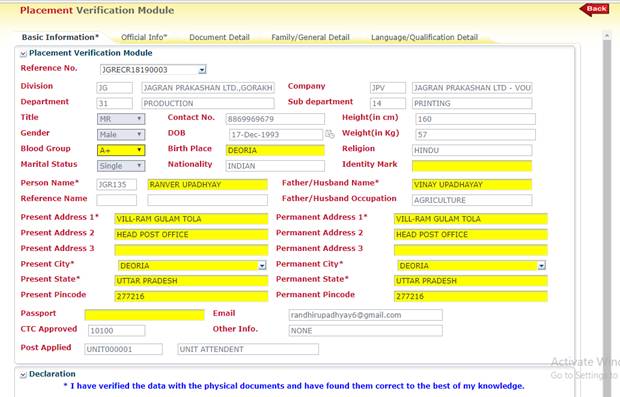
https://jconnect.dainikjagran.com/jagranportal/jconnecthelp/help/Placement%20Verficiation_files/image008.jpg


Step 5: Click on Official TAB. Check all the required details.
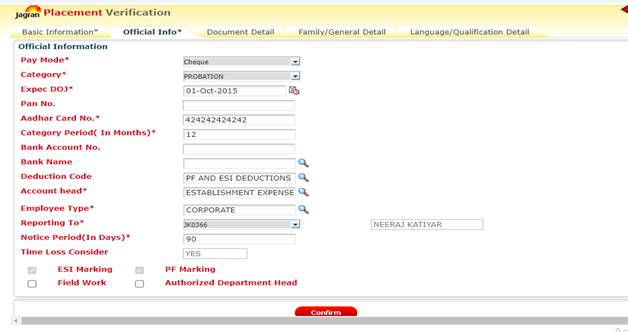


Step 6: Click on confirm button to save the official information.
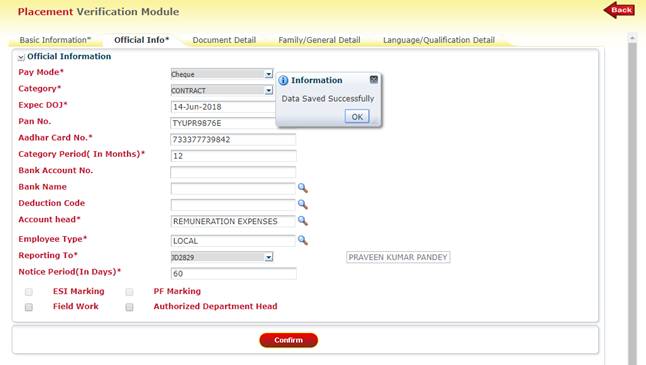
 

https://jconnect.dainikjagran.com/jagranportal/jconnecthelp/help/Placement%20Verficiation_files/image012.jpg


Step 7: Click On Document Details to view the uploaded documents.
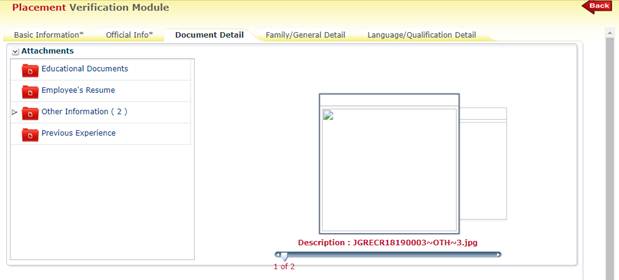
 

https://jconnect.dainikjagran.com/jagranportal/jconnecthelp/help/Placement%20Verficiation_files/image014.jpg

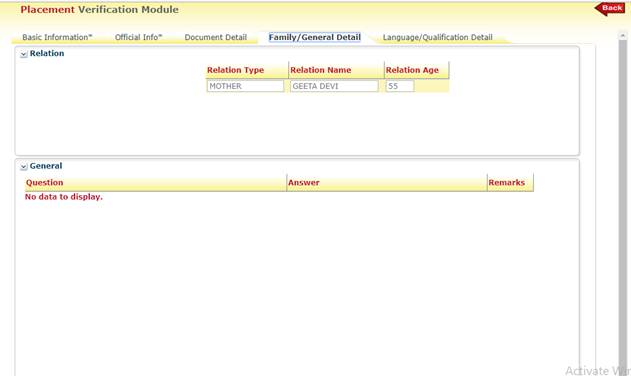
Step 8: Click on Family/General Details TAB to view the family member’s details-https://jconnect.dainikjagran.com/jagranportal/jconnecthelp/help/Placement%20Verficiation_files/image016.jpg


Step 9: Click on Language / Qualification TAB to view the languages known by candidate and qualification details as filled by the candidate.
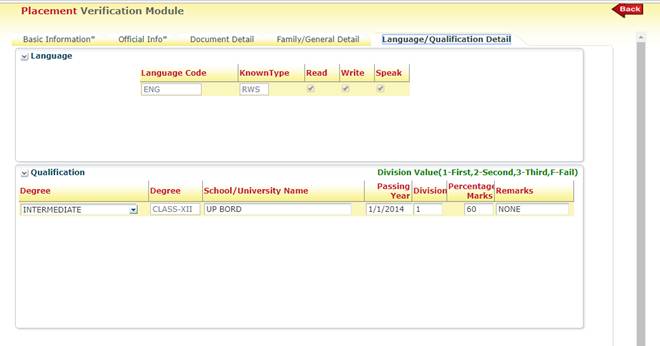
https://jconnect.dainikjagran.com/jagranportal/jconnecthelp/help/Placement%20Verficiation_files/image018.jpg

Step 10:  Come back to Basic Information TAB. Check all the details-https://jconnect.dainikjagran.com/jagranportal/jconnecthelp/help/Placement%20Verficiation_files/image020.jpg
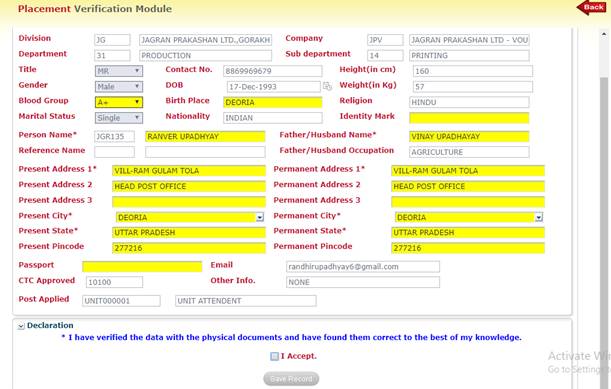


Step 11: Click on check box option. https://jconnect.dainikjagran.com/jagranportal/jconnecthelp/help/Placement%20Verficiation_files/image022.jpg

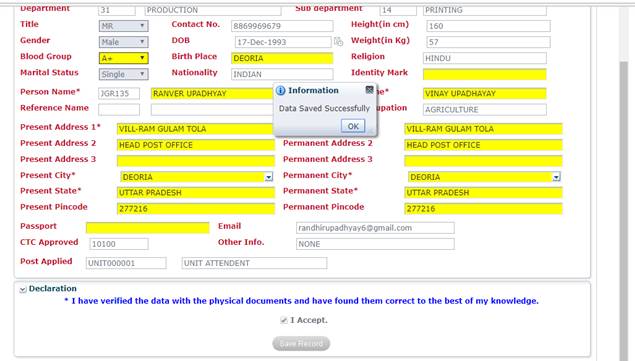
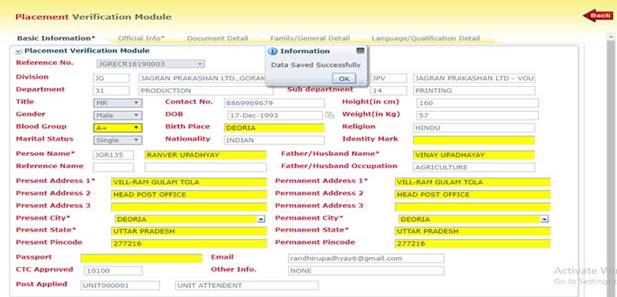
Step 12: Finally, click on Confirm button to save the record.
https://jconnect.dainikjagran.com/jagranportal/jconnecthelp/help/Placement%20Verficiation_files/image024.jpg


https://jconnect.dainikjagran.com/jagranportal/jconnecthelp/help/Placement%20Verficiation_files/image026.jpg