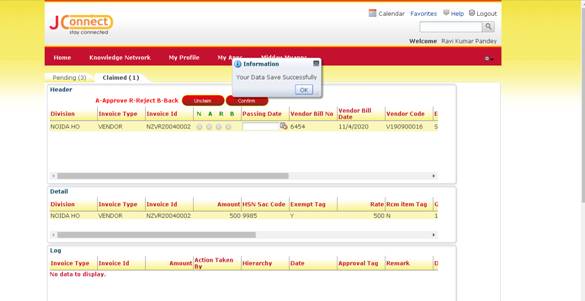
EVENT VENDOR
BILL APPROVAL
Pending
What is the Objective of this Module?
This module is used for the event vendor bill approval.
Step 1: Search pending tasks to be claimed.
How can you see your Pending Task?
· by clicking on  all pending task will be displayed.
· specify Search criteria and then
press (for a particular task).
How to Search for a task?
This section provides search options to search
any approval that is pending for the login Approval authority. The following
Search criteria are available-
· unit: This dropdown list allows you to select a
division for which user has permission.
What does the “Search...” in the drop
down do?
Click
on Search. It will show a
window with the advance search options. By clicking on Search button all the data will be shown (without specifying
search criteria).
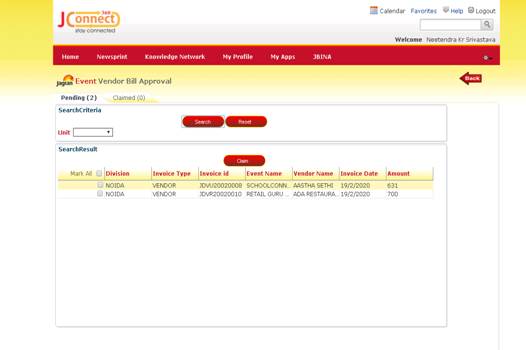
Step 2: Select task by marking individual task or by . Claim tasks by clicking

Step 3: Change tab by clicking ‘Claimed Task’ tab. Here the users
can Approve/Reject/Back tasks.
Step 4: Now user may Approve (A), Reject(R), Back (B) or Perform No
Action (N) by selecting the appropriate option.
Step 5: How to give Remark?
A popup will appear by clicking on. User
can add remark here.(only in case of confirm
Button).
Step 6: Confirm your action.
All the changes will be saved after clicking on
‘Confirm’.
Claimed
tab
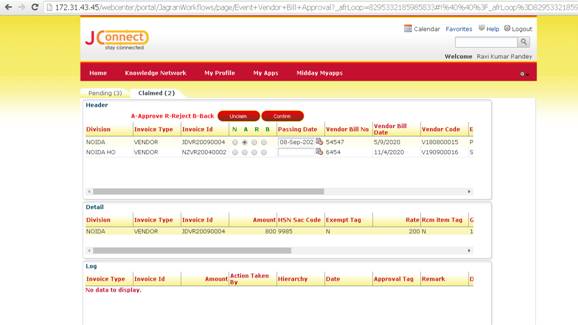
Stm noàJDVR20090004
Purpose : Passing Date mendatory for final hierarchy.